Plate Recognizer VisionAlert
Receive alerts when cameras are blocked, moved, blurred, or affected by glare in any environment. VisionAlert uses intelligent analysis to distinguish between temporary and persistent obstructions, reducing false positives through contextual evaluation.
Getting Started with FTP
Get FTP Credentials
After purchasing a VisionAlert FTP license, you'll need to obtain your FTP credentials to start uploading camera snapshots.
- Visit the VisionAlert FTP Credentials page to access your unique FTP credentials.
- You'll receive the following information:
- FTP Server Address
- FTP Username
- FTP Password
Configure Folder Structure
The FTP folder structure determines how cameras and vehicles are organized in the system. There are two main configuration options:
Option 1: Cameras Without Tag Association
To add cameras without linking them to specific tags:
/vision-alert/<camera_serial>/
Example:
/vision-alert/entrance-camera/
/vision-alert/parking-camera/
/vision-alert/lobby-camera/
Option 2: Cameras Linked to Tags
To link cameras to specific tags (useful for managing vehicles by group):
/vision-alert/<TAG_NAME>/<camera_serial>/
Example:
/vision-alert/TAG01/entrance-camera/
/vision-alert/TAG01/parking-camera/
/vision-alert/TAG15/lobby-camera/
In this case, cameras can be automatically associated with the tag when their images are uploaded through the corresponding folder structure.
Automatic vs Manual Setup
Automatic Setup via FTP
When you upload an image to the FTP for the first time using the correct folder structure:
- The camera is created automatically in the VisionAlert system
- The snapshot is added as a reference automatically
- The image name on the first upload sets the camera name (subsequent uploads don't affect this name)
- No need to manually add cameras in the dashboard
Process:
- Connect to the FTP server using your credentials
- Create the desired folder structure
- Upload the first image - the camera will be created automatically
Manual Configuration (Alternative Method)
If you prefer to configure manually:
-
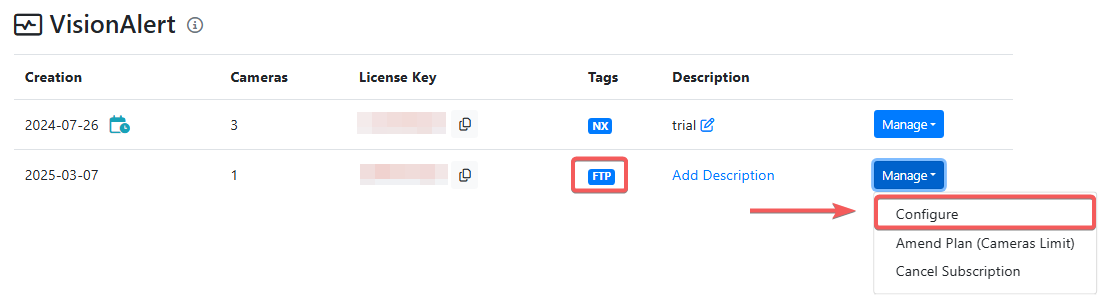
Go to the VisionAlert Settings
-
Click "Manage" next to your FTP license
-
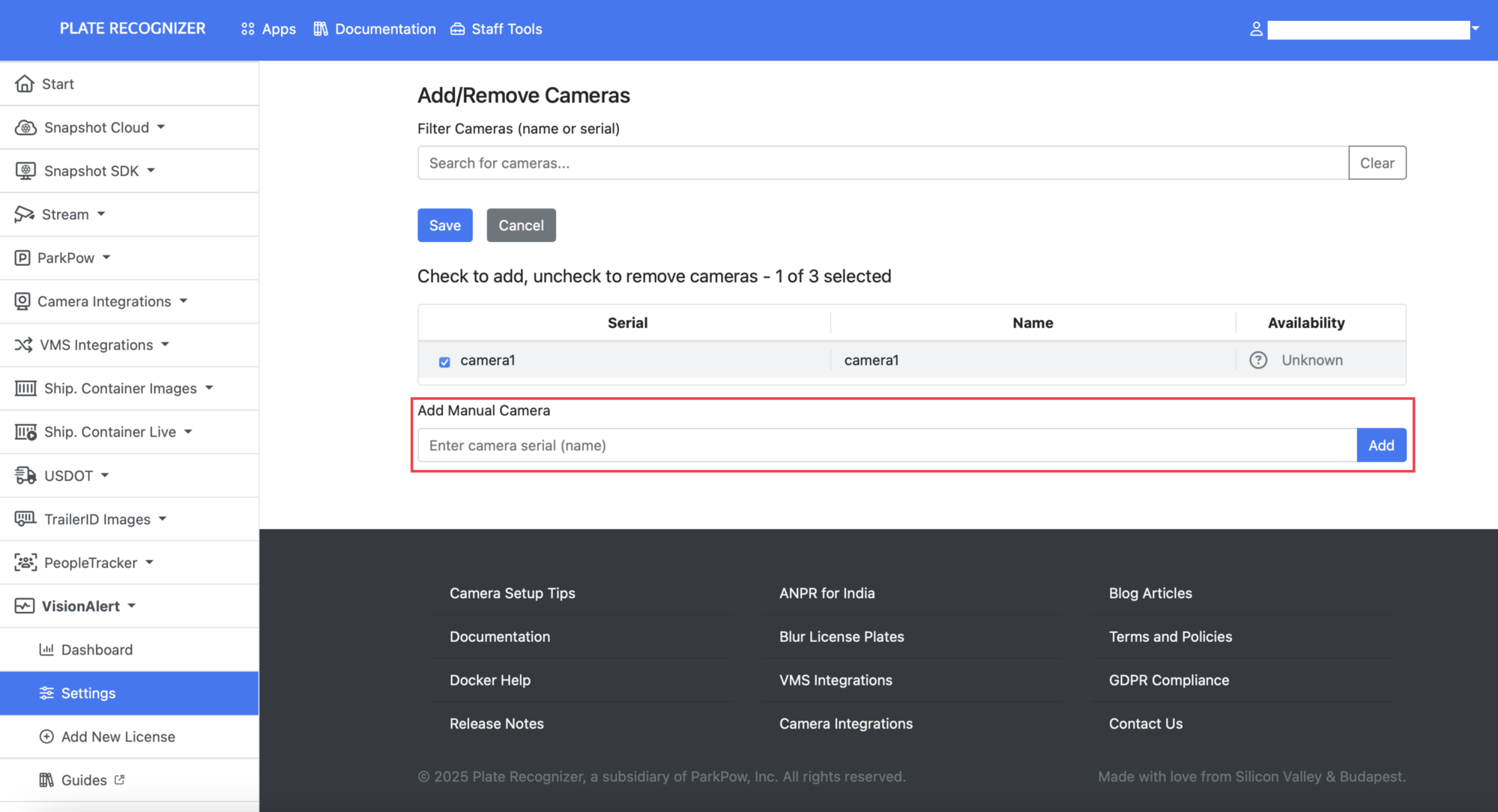
Add cameras manually as described in the Configure VisionAlert guide
-
Important: The camera name must match exactly the folder name you created on the FTP server (without the
/vision-alert/prefix) -
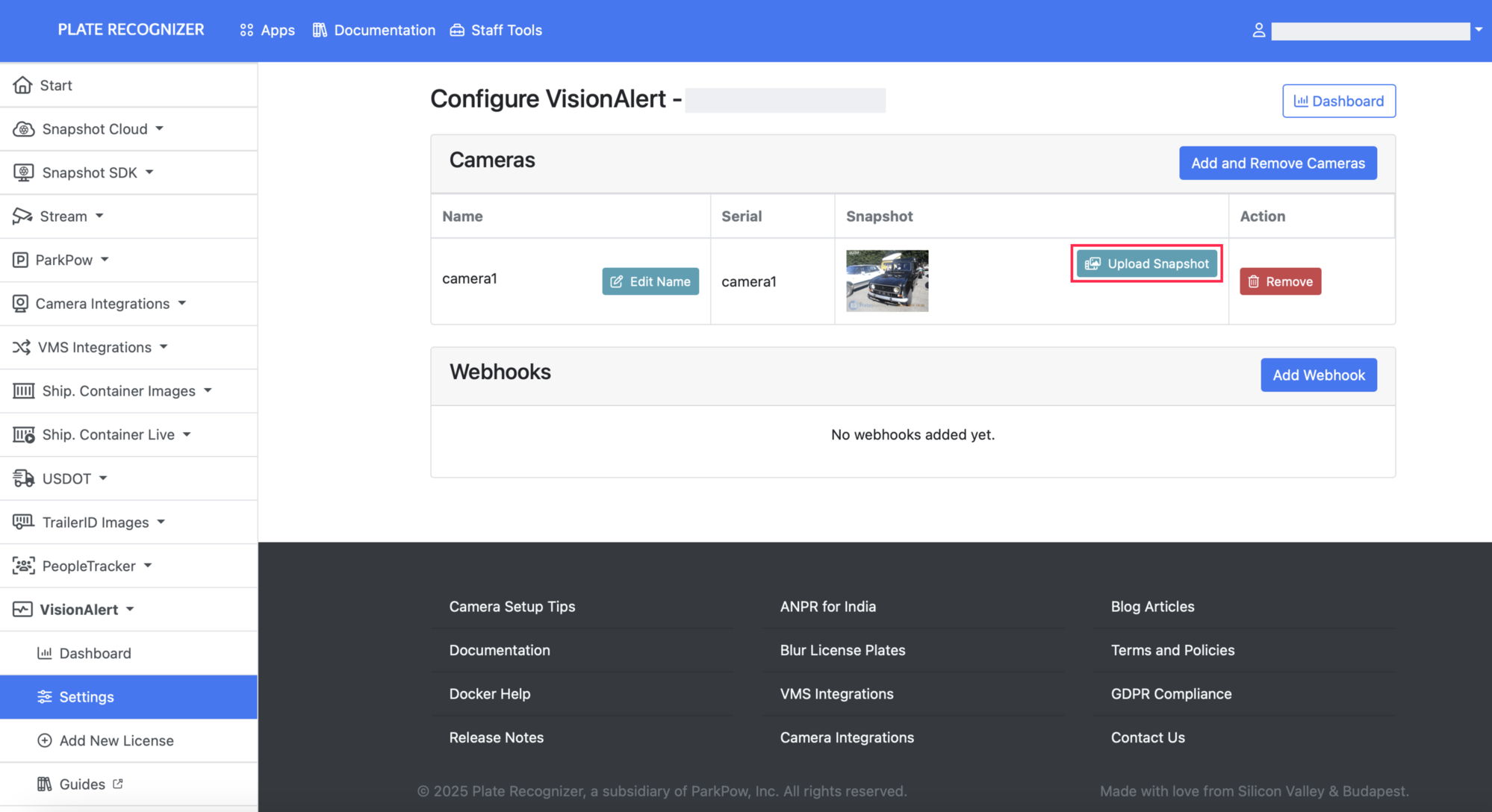
Upload a reference snapshot using the "Upload Snapshot" button on each camera row
Upload Frequency
You can only upload one image per camera every 15 minutes. Uploading more frequently will not improve detection.